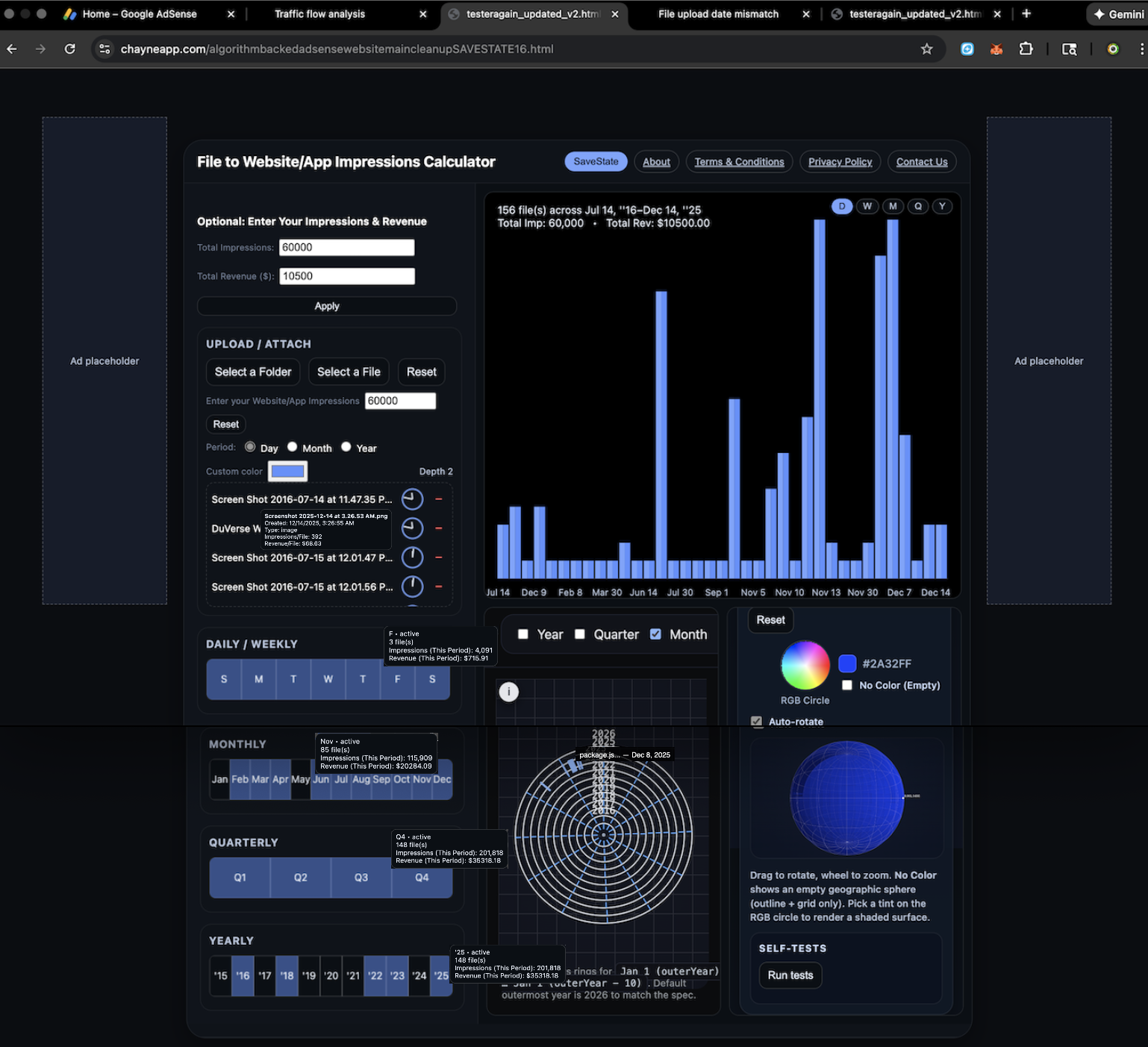
The content in the About section is an example of the type of R&D or “Work” that gets fed into the Work File tool so that impressions and revenue from your ad network analytics dashboard can be compared against your Work Files with greater transparency.
Click to SEE EXAMPLE (We used our data).
Click "Work File to Website/App Impressions Calculator" to collapse/expand this text.
Terms & Conditions
By using this site, you agree that it is provided for informational and analytics purposes only and without any guarantee of fitness for a particular purpose.
You remain responsible for how you use any estimates or insights produced here, including how they interact with your ad network or third-party services.
Privacy Policy
We do not permanently store the files or metadata you upload. Calculations are performed in-session and cleared when you leave the page.
Because we do not save your data, we do not sell or share it with third parties. Any learning we do is based only on messages you intentionally send us (for example, via email or a future contact form).
Contact Us
If you have questions about how the analytics work, the assumptions behind the impressions calculator, or any of the information displayed here, please reach out through the contact option provided on the main site where this tool is hosted.
As the platform evolves, a direct contact form and additional support channels may be added.
If you want to save your changes you're going to need a save key. We will never ask you for your save key and we suggest that you back it up in a safe place. If you lose it we will not be able to recover it for you and we will not be able to recover your save state. If you see 'Page Unresponsive' clicking 'wait' once or twice usually works. If it take longer than two times click 'Exit Page'. We STRONGLY advise that you DO NOT click 'wait' a 3rd time. The third time most likely means you have reached the maximum number of files that can be uploaded.
If its your first time: Click 'Generate Key'. It is a value that is between 8 and 12 characters. Type it in and click 'Load Key' to get your Save State. Remember the key. Store it in a safe place.
If you are coming back: Enter your save key. Click 'Load Key' to get to your Save State.
If you want a new save key, just get a new one with 'Generate Key' and stop using the old key or use it for a separate set of files. Ex: one key for Recent Files with minor edits vs. another key for Prototype JPEG Files.